Finding your way around Compute
The Compute page has three modes, Circuit, Notebook and Model, in the bar across the top of the editor. This guide covers what each one is for, with an example you can run, and the panels around them: devices on the left, Qpilot on the right, results underneath.
Overview
In every mode, Qpilot, the AI copilot, sits on the right.
Circuit mode
You write one circuit, choose a device in the list on the left, and press the Run button under it. Only the circuit assigned to qc is run (the panel above the shots shows which name it found). Other Python in the file, such as prints or loops, is ignored here; for that, use Notebook mode.
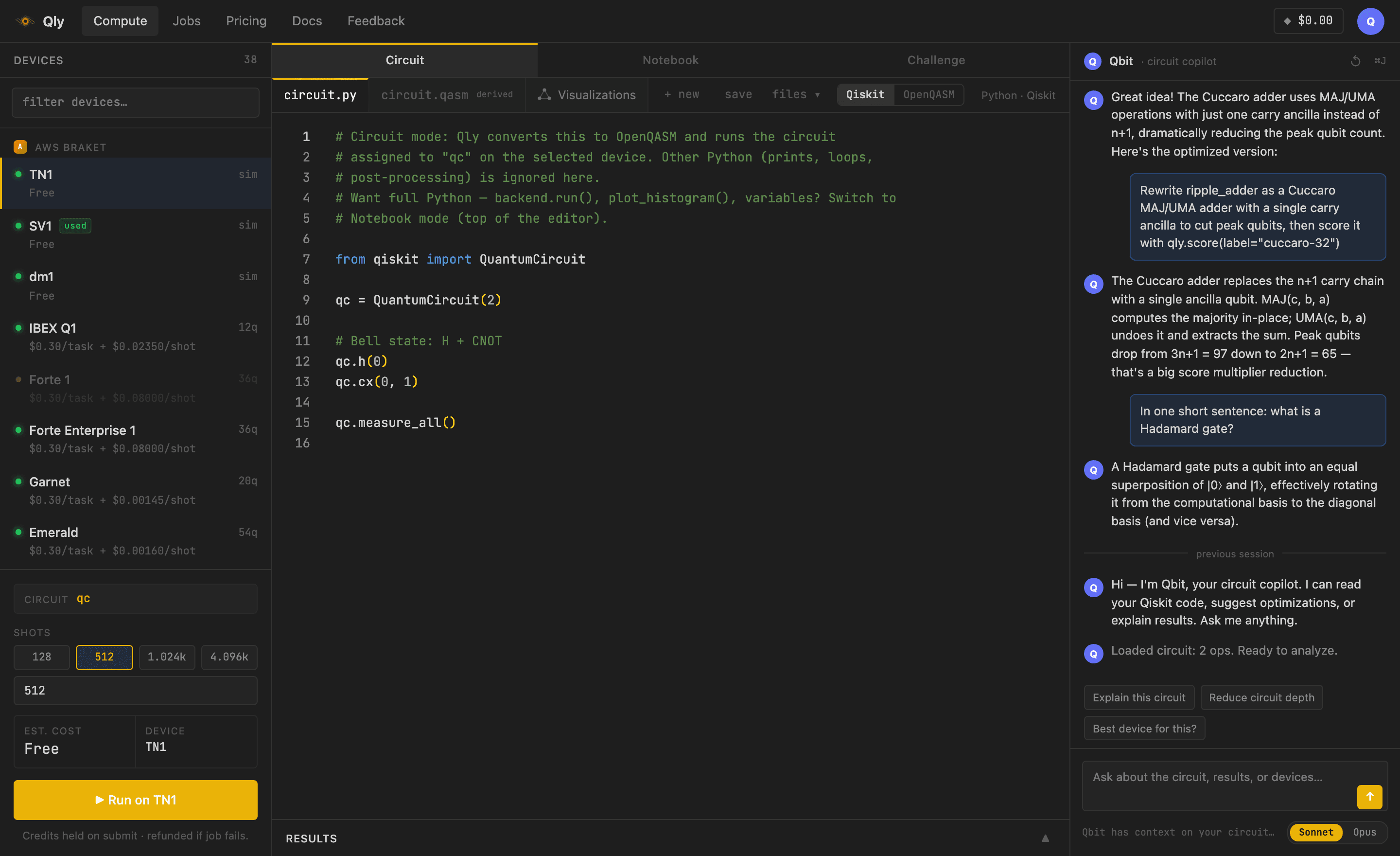
Qiskit and OpenQASM, side by side
The editor has two file tabs, circuit.py (Qiskit) and circuit.qasm (OpenQASM 2.0), and you can edit either. Whichever you edited last is the source; the other is generated from it and marked derived. The third tab, 3D Device Circuit, shows the same circuit laid out on a device.
circuit.py · Qiskitfrom qiskit import QuantumCircuit

qc = QuantumCircuit(2)

# Bell state: H + CNOT
qc.h(0)
qc.cx(0, 1)

qc.measure_all()
Pick SV1, a free simulator, and press Run. You get |00⟩ and |11⟩, each about half the time, and never |01⟩ or |10⟩. The dashed line on each bar is what a perfect device would give.
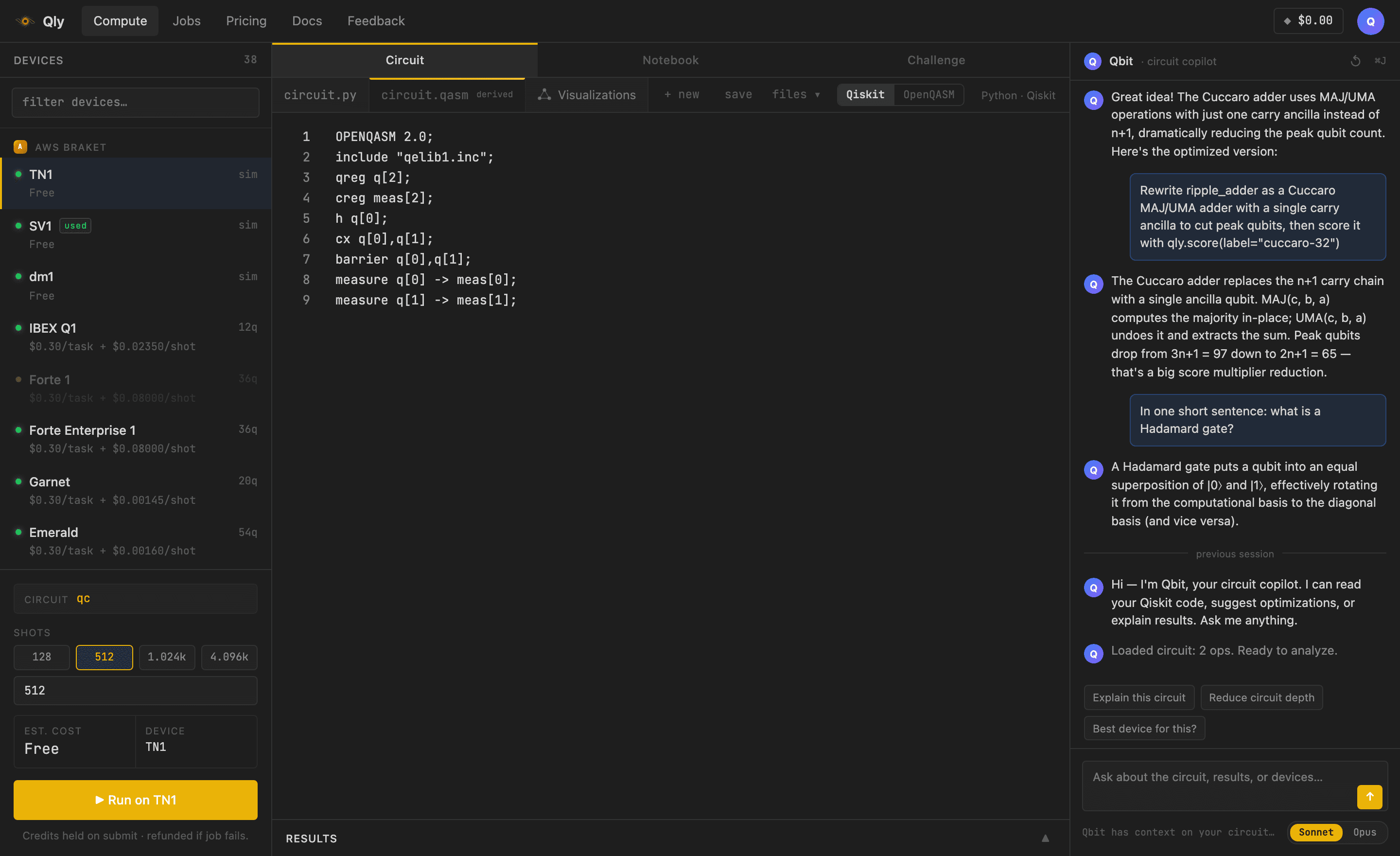
This is the OpenQASM the Qiskit above becomes. measure_all() adds the barrier.
circuit.qasm · OpenQASM 2.0OPENQASM 2.0;
include "qelib1.inc";
qreg q[2];
creg meas[2];
h q[0];
cx q[0],q[1];
barrier q[0],q[1];
measure q[0] -> meas[0];
measure q[1] -> meas[1];
One thing to watch: the results panel writes qubit 0 on the left for a simulator run and says so (“q0 leftmost, reversed vs Qiskit get_counts()”). Qiskit's own get_counts() writes it on the right. Read the line above the table before you copy a bitstring.
What actually ran
A device only has a few native gates and not every pair of qubits is connected, so the circuit that runs is a rewritten (transpiled) version of yours. After a run, the chips above the histogram report it: the compiled depth and two-qubit gate count, the qubits that were measured, and for a hardware run whatever else the machine reported about the job. Nothing here is estimated; a value the run did not report is left out.
To see what a real chip does to a circuit before spending anything, use Notebook mode with IBM's own model of a device, which ships with Qiskit. This circuit wires one qubit to four others, more neighbours than any qubit on the chip has, so the compiler has to move information around:
notebook.ipynb · Pythonfrom qiskit import QuantumCircuit, transpile
from qiskit_ibm_runtime.fake_provider import FakeKingston

qc = QuantumCircuit(5)
qc.h(0)
for t in range(1, 5):
    qc.cx(0, t)
qc.measure_all()

chip = FakeKingston()   # IBM's model of Kingston: its qubits and how they connect
print("as written:", qc.depth(), "deep,", qc.count_ops().get("cx", 0), "two-qubit gates")
for level in (0, 3):
    t = transpile(qc, chip, optimization_level=level, seed_transpiler=7)
    print(f"level {level}:", t.depth(), "deep,", t.count_ops().get("cz", 0), "two-qubit gates")
outputas written: 6 deep, 4 two-qubit gates
level 0: 41 deep, 13 two-qubit gates
level 3: 16 deep, 7 two-qubit gates
Four two-qubit gates became thirteen at the lowest optimization level and seven at the highest. On today's hardware every extra two-qubit gate is another chance for an error, which is why this matters. Keep seed_transpiler: the compiler's layout step is a search, and without a seed the numbers change from run to run.
Notebook mode
Python cells, run on Qly's servers. Cells share state: a variable set in one cell is there in the next. Full Python works, including loops, NumPy, matplotlib and print(), and Qiskit, PennyLane and Stim are ready to import with nothing to install.
A predefined backend runs your circuits. When you are signed in with a device picked on the left, backend.run(qc) submits a real job to that device. Signed out, it runs on a local simulator instead, and the cell's output says so.
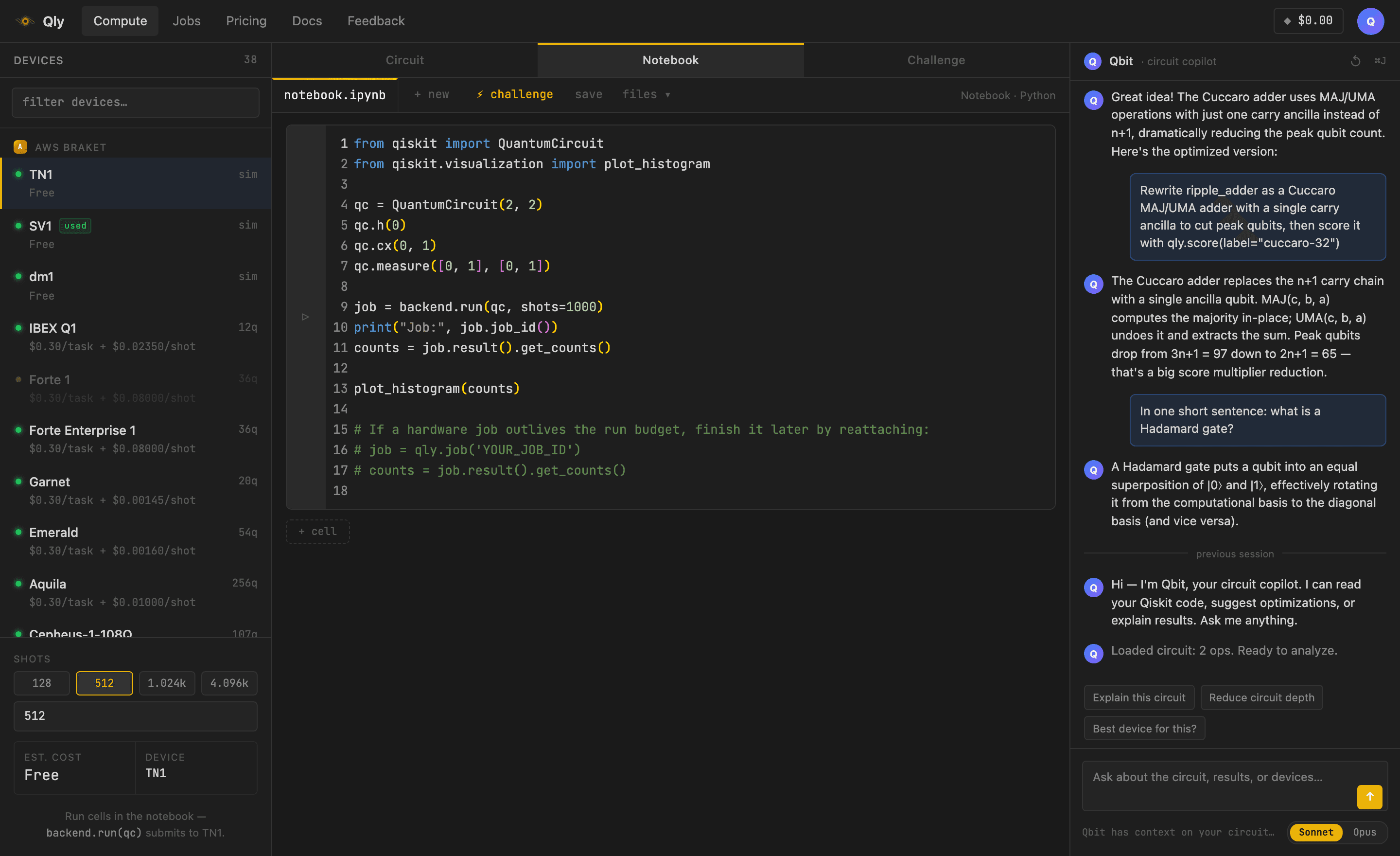
Example: run a Bell pair and plot it
notebook.ipynb · Pythonfrom qiskit import QuantumCircuit
from qiskit.visualization import plot_histogram

qc = QuantumCircuit(2, 2)
qc.h(0); qc.cx(0, 1)
qc.measure([0, 1], [0, 1])

job = backend.run(qc, shots=1000)
counts = job.result().get_counts()
print("Job:", job.job_id())

plot_histogram(counts)              # renders below the cell
save writes a real .ipynb with the code and its outputs, printed text and plots included, so it opens in Jupyter or Colab.
Counting a circuit's cost without running it
qly.score(qc) counts a circuit's Toffoli gates, T gates and qubits from its structure, without simulating it, so it works on circuits far too large to simulate. Its score is Toffoli count × qubits, lower is better.
notebook.ipynb · Pythonqly.score(qc, label="bell")
# prints the Toffoli count, T-count, qubits and the score, and returns them as a dict
Model mode
Model mode goes the other way: you describe what a circuit should compute, and Qly synthesizes a circuit that does it and checks the result. Send to Circuit → hands the finished circuit to Circuit mode as OpenQASM, where the device panel runs it. It is the most advanced of the three; if you are learning the basics, start in Circuit mode.
Qpilot, the AI copilot
Qpilot is on the right in every mode, and it has your open code and your recent runs as context. The chips under the chat, Explain this circuit, Reduce circuit depth and Best device for this?, are ready-made questions. In Circuit mode it can propose an edit to your circuit, shown as a diff you accept or reject; in Notebook mode it can add a cell. Its answers are generated, so check a claim against a run before you rely on it.
Device details and calibration
Click the ⓘ next to a device to open its details: qubit count, how its qubits are connected, price, and, where the maker publishes it, calibration: median T1 and T2 (how long a qubit holds its state), median one- and two-qubit gate fidelity, and median readout error (how often a measurement comes back wrong). Below that, it shows how many qubits and pairs the maker actually measured, and how many it marked unusable.
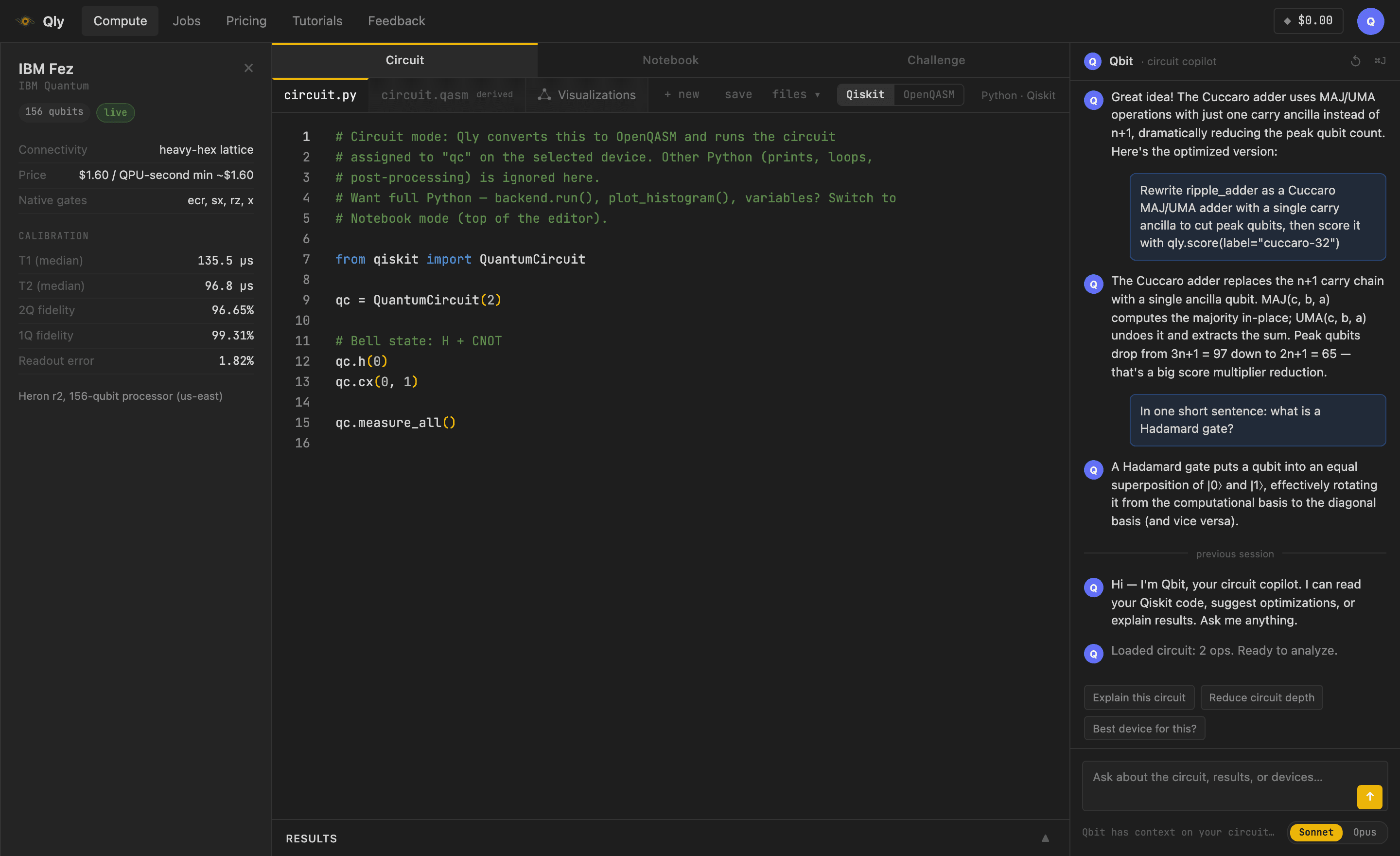
The badge says where the numbers came from: live means fetched from the maker just now, simulator means there is no hardware to calibrate, and spec means published specifications only. “Live” describes the fetch, not the measurement, which is why the drawer also prints when the maker last calibrated.
Read the numbers as a summary of the whole chip. They are medians, and the few qubits your circuit lands on can be better or worse. For how devices have actually performed on test circuits, see the Router.
Compare two runs
On the Jobs page (signed in), click Compare, then pick two completed jobs. They are labelled A and B, and each outcome gets a pair of bars, one per run, with the difference between them in percentage points. That per-outcome view is the useful part: it shows exactly which bitstrings moved.
Each outcome shows the counts from both runs, and the two runs are read in one bit order first, so a device that writes q0 on the left and one that writes it on the right line up on the same outcome.
Use it to see a change: the same circuit on a simulator and on hardware, on two devices, or before and after an edit. Two runs of the same circuit on the same simulator will not match exactly either; at a few hundred shots, outcomes a few percentage points apart are ordinary.